-

Bachelor's

-

Masters
-

MBA
-

Doctorate
-

Micro Credit
-

Explore all Courses
-
Postgraduate Certifications

-
Postgraduate Diploma
-
Undergraduate Diploma
-
Diploma



The Future of Creativity: AI-Powered Design Tool
Author: neha mondal
|6
MINS READ
| 0
| 252
Created On: 18 November, 2025
Share




Artificial Intelligence is transforming creativity. Today, you don’t need to be a designer or developer to bring your ideas to life. Platforms like Adobe Firefly, Fotor AI, Bing Image Creator, and Canva Magic Studio are leading this change, each helping users create designs, images, and text in minutes.
All of them have their strengths. But in this blog, we’ll take Canva Magic Studio as our example to understand how AI-powered, no-code design tools actually work and how you can use them to create professional designs step by step.
The Rise of No-Code AI Design Tools
No-code tools are breaking creative barriers. Earlier, design software demanded skill and time. Today, AI design generators simplify everything, from layout selection to image creation.
You can now describe what you want, and AI turns it into a ready-to-use design. These tools are empowering students, professionals, and small businesses alike to express ideas visually & without technical knowledge.
Among various platforms, Canva’s Magic Studio is one such workspace that brings these AI features together, making it useful for exploring how AI supports creative work.
What Is Canva Magic Studio?
For this discussion, we’ll take Canva Magic Studio as a practical example to see how AI-based design tools function in real-world use. Before exploring how its features work, it helps to understand the basics.
Canva Magic Studio is an AI-driven workspace where you can design, write, and create visuals all in one place. It combines Canva’s AI features like Magic Write, Magic Design, and the AI Image Generator into a single dashboard.
It serves as a clear example of how AI can support different stages of design, making content creation more efficient and accessible for a wider range of users.
Getting Started with an AI Design Workspace
To see how such platforms operate, the process can be outlined simply:
Here’s how to begin:
1. Sign in or create a Canva account at canva.com.
2. Click Create a design from the homepage.
3. Choose what you want to make — a post, logo, flyer, or video.
4. Type your idea in the search box. Example: “ clean and modern event poster for a school fair.”
5. It will generate several options.
6. Pick your favourite design and customise fonts, images, or colours.
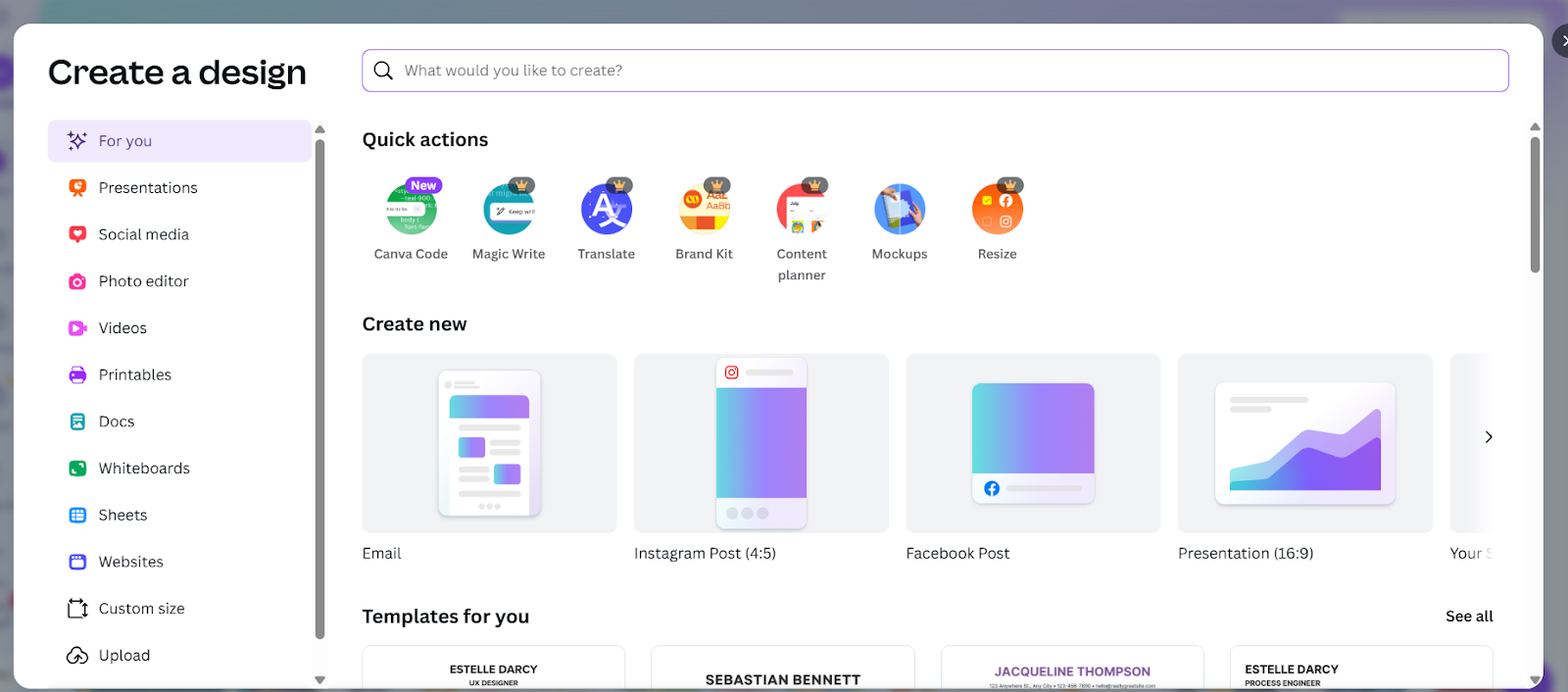
These steps show how AI tools can translate text-based input into editable designs with minimal effort.
What Is Canva Magic Write?
Magic Write is a text-generation feature that assists in creating written content like headlines, captions, blog text, or short summaries.
How to Use Canva Magic Write:
1. Open a blank document or design.
2. Select “Magic Write” from the toolbar.
3. Type your prompt, for example: “Write a catchy headline for a bakery opening.”
4. Canva AI will generate a few suggestions instantly.
5. Edit or refine the text as you like.
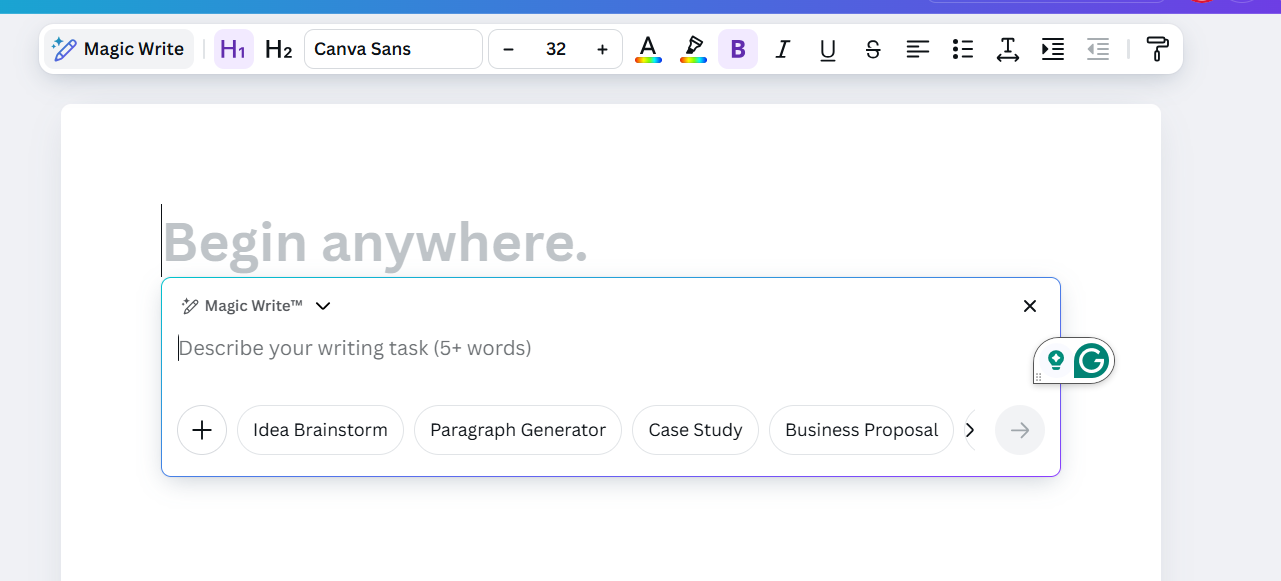
This feature helps speed up content creation while allowing users to keep control over tone and phrasing.
Creating Images with Canva Magic Media
Magic Media allows users to generate AI-based images or short videos. It works through text input and replaces Canva’s earlier “Text to Image” option.
Steps to Use Canva Magic Media
1. Open Canva and start a new design (for example, a presentation or poster).
2. On the left panel, click Magic Media
3. In the text box, type your description, for instance:
“A futuristic library with glowing blue lights.”
4. Choose whether you want an Image or a Video.
5. Select your preferred style (photo, 3D, digital art, painting, etc.).
6. Click Generate.
7. Canva will create several AI-generated images or clips, pick the one you like, and insert it into your design.
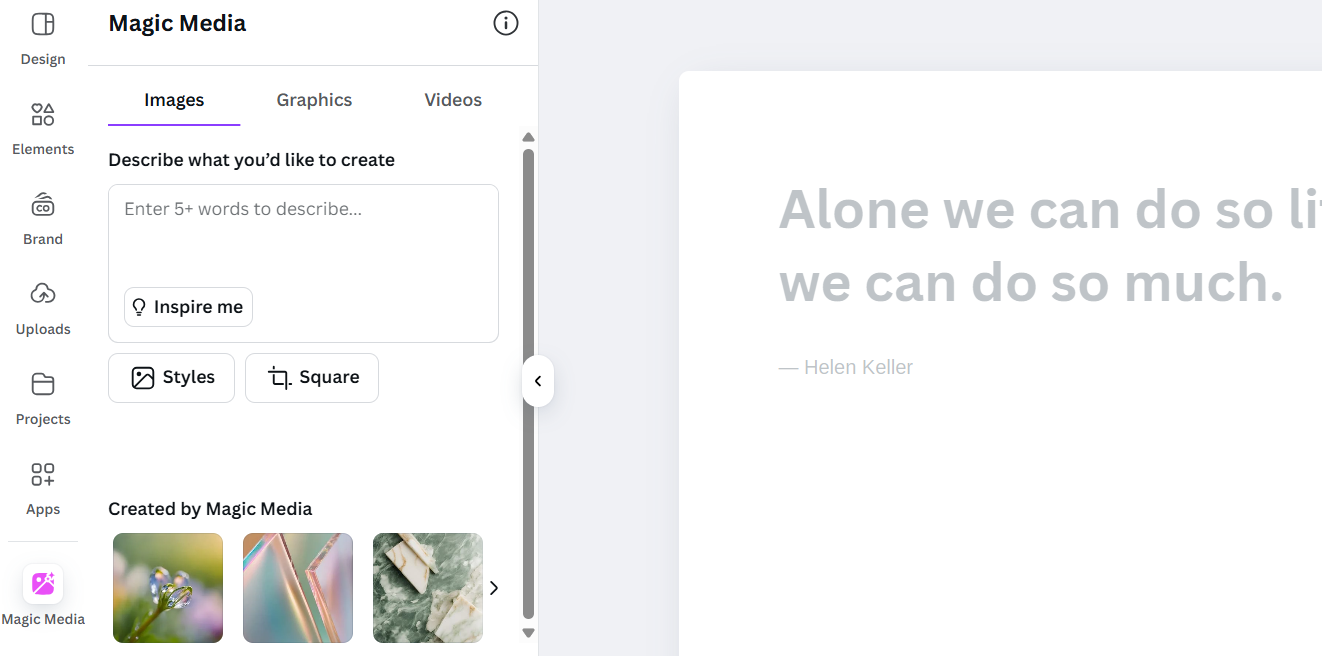
This helps users create original visuals without depending on external image sources.
Designing Layouts with Canva AI
The tool, like Canva AI, can automatically build layouts for you based on your input. It’s perfect if you’re unsure how to start your design.
How to Use Canva AI:
1. Click on Canva AI from the home page, which will open a chat box.
2. Where you upload an image or type a prompt like “modern resume template.”
3. Magic Design instantly generates multiple templates.
4. Select one and edit it to your liking, change fonts, colours, or add elements.
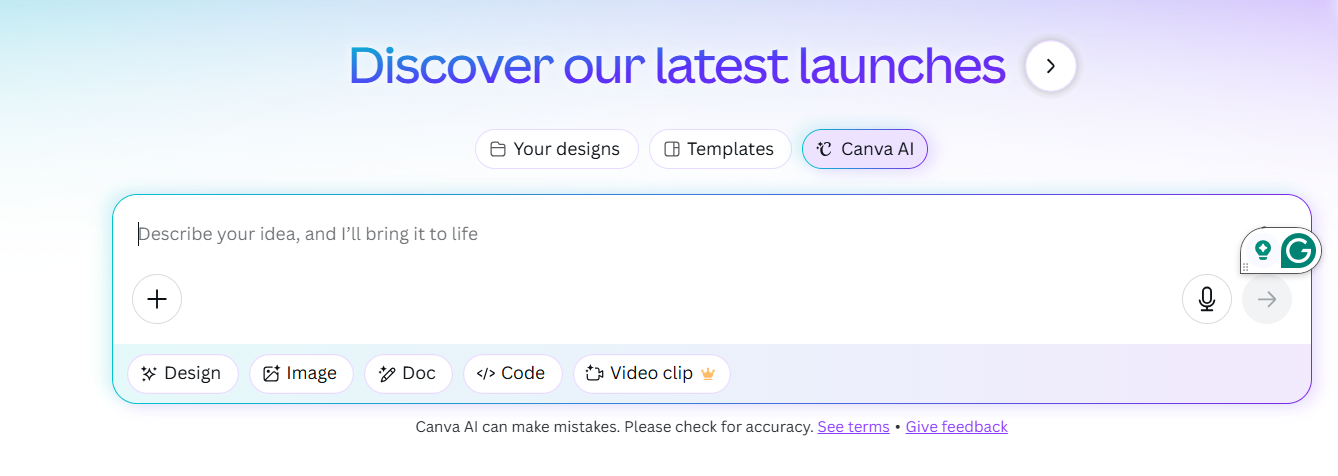
This feature helps users quickly find a starting point for their projects.
Also Read: Is Graphic Design A Good Career?
Canva AI Logo Generator
Designing a logo no longer means hiring a professional or learning advanced software. With AI-powered tools, anyone can create a unique brand logo in just a few minutes.
Canva doesn’t have a separate “AI Logo Generator” button, but the Magic Design, Magic Media, or even Canva Ask features can help you generate creative logo ideas.
Steps:
1. Open Canva and start a new design (for example, a presentation or poster).
2. Then you can either use “Magic Design” or just use “Canva Ask”
3. Type your prompt to create a logo
4. Canva’s AI will instantly create a logo with the most reasonable layouts, colour combinations, and typography ideas.
5. You can either edit it yourself but adding it to the page or ask in the continuous chat to customise it, change the font, icon, or colours to match your brand.
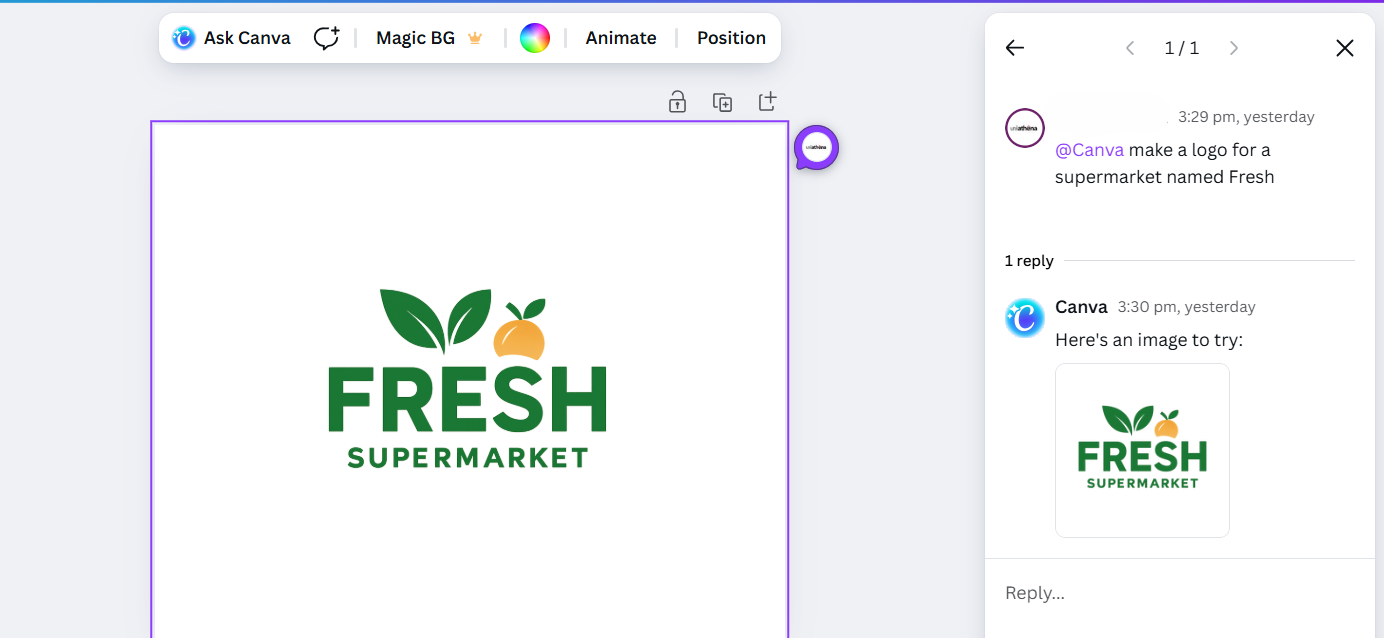
Such AI-assisted logo creation can help small businesses or students experiment with brand visuals efficiently.
Also Read: What Should I Learn First: UI or UX?
Tips to Get the Best Out of Canva AI
1. Use clear prompts. Be specific — “a summer sale poster with bright colours” gives better results than just “poster.”
2. Combine tools. Use Magic Write for text, Magic Design for layout, and AI Images for visuals.
3. Explore templates. They give structure and help beginners learn design balance.
4. Stay consistent. Save your Brand Kit to apply the same colours and fonts easily.
5. Experiment. Try different prompts and layouts to understand how AI responds.
Use in Education and Professional Settings
AI-assisted design tools are widely used across both academic and professional environments.
In education, they help students create visually appealing presentations, infographics, and research posters without requiring prior design experience. These tools support better communication of ideas through visuals and make project preparation more efficient.
In professional settings, generative design platforms like Invideo's AI mood board tool are used by marketing teams, freelancers, and small businesses to develop social media content, reports, brand materials, and advertisements within shorter timeframes.
Overall, such AI tools offer a practical balance of simplicity and creative support, useful for tasks ranging from classroom projects to marketing campaigns.
Conclusion: Exploring Creativity Through AI
AI design tools are changing how ideas take shape. Platforms like Adobe Firefly, Fotor AI, Bing Image Creator, and Canva Magic Studio make it easier to generate text, visuals, and layouts without technical skills.
They simplify the creative process and help students, professionals, and small teams turn concepts into visual content more efficiently. In this way, AI supports creativity by making design tools more accessible to everyone.
Stay tuned for more upcoming blogs exploring the latest trends, tools, and innovations in AI & the digital space.
Explore Related Courses











COMMENTS(0)
Explore Related Courses
Our Popular Insights
Careers are shifting faster than ever, and staying relevant takes more than experience. Explore UniAthena’s most-read blogs for sharp insights, emerging skills, and practical pathways that help you move forward with clarity and confidence in a changing professional world.


🌟 Top Project Performer – June 2026 🌟
Read More
1
mins read


🌟 Top Project Performer – May 2026 🌟
Read More
1
mins read
Best AI Tools for Content Creation
Read More
9
mins read

How to Start Freelancing With No Experience
Read More
8
mins read
🌟 Top Project Performer – April 2026 🌟
Read More
1
mins read
🌟 Top Project Performer – June 2026 🌟
Read more
1
mins read
🌟 Top Project Performer – May 2026 🌟
Read more
1
mins read
Best AI Tools for Content Creation
Read more
9
mins read
How to Start Freelancing With No Experience
Read more
8
mins read
🌟 Top Project Performer – April 2026 🌟
Read more
1
mins read
Get in Touch

It’s Time to Start
Join NowMost Popular Online Specialization
- Master of International Business Administration
- Master of Business Administration
- MBA in General Management- FastTrack
- Master in Innovation and Entrepreneurship
- MBA-Family Business Management
- Master in Procurement and Contract Management
- Extended Diploma in Business Analytics (SCQF Level 11)
- Diploma in Supply Chain and Logistics Management (SCQF Level 11)
- Strategic Human Resource Management Practitioner
- Master in Data Science
- Master in Engineering Management
Trending Online
- Integrated Doctorate of Business Administration
- Postgraduate Certificate in Finance for Next Generation Managers
- Master of Business Administration- General Management (Fast Track)
- Postgraduate Certificate in Socio-Economic and Legal Framework
- Postgraduate Certificate in Business Sustainability
- Certified Manager
- Supply Chain Management Practitioner
- MBA - AI in Business
- MBA - Accounting & Finance
- Master in Supply Chain and Logistics Management
Top Universities Online Certificates
- Postgraduate Certificate in International Marketing Management
- Postgraduate Certificate In International Human Resource Management
- Postgraduate Certificate in Strategic Management
- Postgraduate Certificate in Procurement & Contracts Management
- Postgraduate Certificate in Business Analytics
- Postgraduate Certificate in Strategic Supply Chain & Logistics Management
- Postgraduate Certificate in Human Resource and Leadership
- Project Management Practitioner
- Postgraduate Certificate in Supply Chain Design & Implementation
- Postgraduate Certificate in Management Accounting and Finance
Accredited Online Degree Program
- MBA - Digital Transformation
- MBA - Family Business Management
- MBA - Marketing Management
- MBA in Quality Management
- MBA - Business Intelligence & Data Analytics
- MBA in Operations & Project Management
- MBA in Energy Management
- MBA In Construction & Safety Management
- Master in Organisational Leadership
- Master in Public Health
- Master in Construction Management
- Bachelor of Arts in Business Administration


 Install Now


UniAthena is an Ed-Tech, offering flexible, affordable learning solutions, including Free-Learning Upskilling Courses and Academic Programs in partnerships with accredited and globally renowned universities and professional qualification bodies.


Do you have any questions ?
Feel free to send us your questions or request a free consultation
Send a message
UK
Athena Global Education
Magdalen Centre,
Robert Robinson Avenue,
Oxford, OX4 4GA, UK
Phone : 01865 784299
MIDDLE EAST
Athena Global Education FZE
Block L-03, First Floor,
P O Box 519265, Sharjah Publishing City,
Free Zone, Sharjah, UAE
Phone : +971 55 879 5492
INDIA
Uniathena Private Limited
9A,Midas Tower
Phase 1
Hinjewadi Rajiv Gandhi Infotech Park
Pune-411057
Phone: +91 9145665544
All Copyrights Reserved @ Athena Global Education 2021-2026